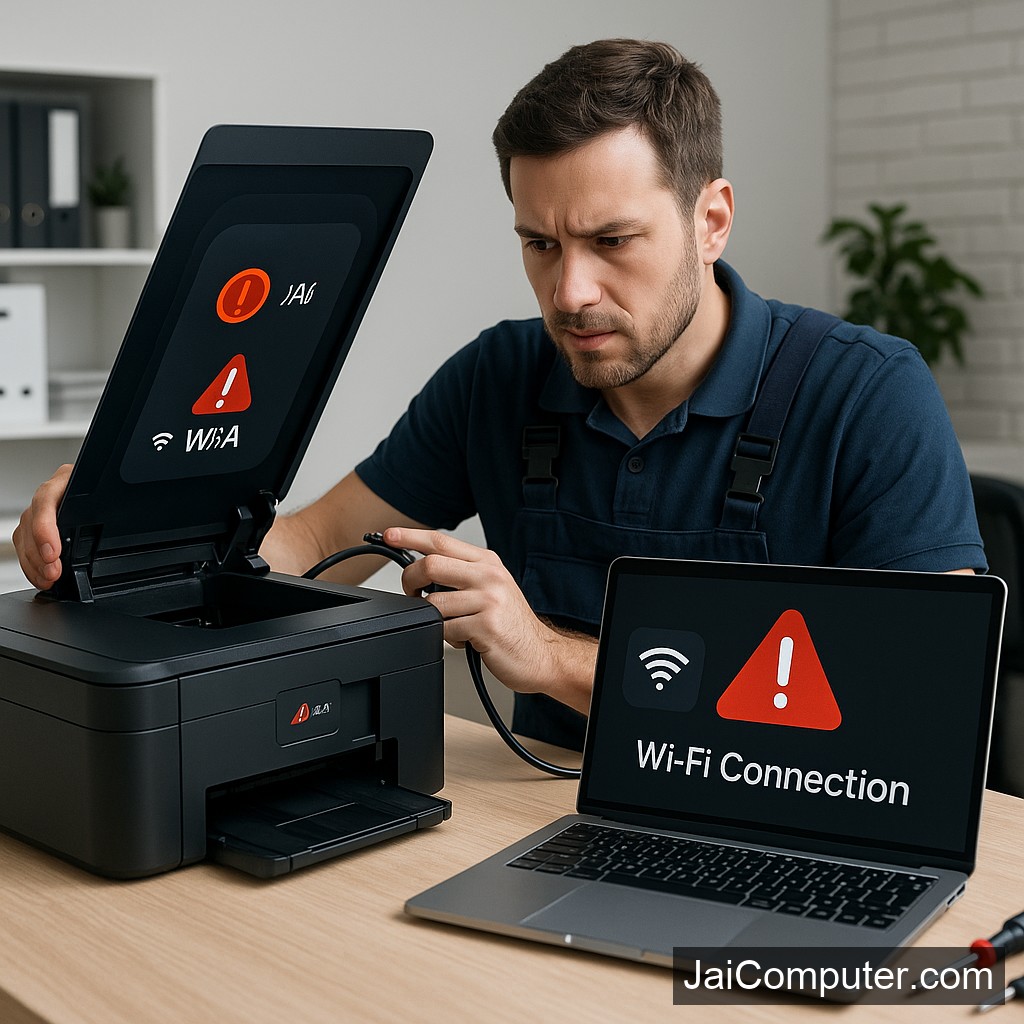
प्रिंटर वाईफाई कनेक्शन समस्या क्या है?
कभी-कभी प्रिंटर वाईफाई से जुड़ने में असफल हो जाता है, जो एक सामान्य समस्या हो सकती है। यह प्रायः नेटवर्क सेटिंग्स या हार्डवेयर में गड़बड़ी के कारण होता है।
आम लक्षण
प्रिंटर के वाईफाई से न जुड़ने पर आप निम्नलिखित लक्षण देख सकते हैं:
- प्रिंटर की स्क्रीन पर ‘कनेक्शन एरर’ संदेश।
- प्रिंट जॉब्स कतार में अटके हुए।
- वाईफाई सिग्नल का गायब होना।
संभावित कारण
कई कारण हो सकते हैं:
- राउटर की दूरी या बाधा।
- नेटवर्क सेटिंग्स में परिवर्तन।
- प्रिंटर के सॉफ़्टवेयर में बग।
डायग्नोस्टिक जांचें
स्टेप-बाय-स्टेप उपाय
- प्रिंटर और राउटर को पुनः चालू करें।
- वाईफाई नेटवर्क की सेटिंग्स को चेक करें।
- प्रिंटर के वाईफाई सेटिंग्स को रीसेट करें।
क्या नहीं करना चाहिए
कुछ कार्यों से बचें:
- फर्मवेयर को बिना जानकारी के अपडेट न करें।
- हार्डवेयर के साथ जोर जबरदस्ती न करें।
कब पेशेवर मदद लें
यदि समस्या बनी रहती है और ऊपर दिए गए उपाय काम नहीं करते, तो पेशेवर सहायता लें।
समस्या से बचाव
- अपने राउटर और प्रिंटर को नियमित रूप से अपडेट रखें।
- अपने नेटवर्क की सुरक्षा सुनिश्चित करें।
पूछे जाने वाले सवाल
प्रिंटर वाईफाई से क्यों नहीं जुड़ रहा है?
संभवतः यह राउटर की सेटिंग्स या प्रिंटर के सॉफ्टवेयर में गड़बड़ी के कारण हो सकता है।
क्या मैं खुद से समस्या हल कर सकता हूँ?
हां, ऊपर दिए गए चरणों का पालन करें। अगर समस्या बनी रहती है, तो विशेषज्ञ से संपर्क करें।
क्या इससे प्रिंटर खराब हो सकता है?
सावधानीपूर्वक करने पर नहीं, लेकिन असावधानी नुकसानदायक हो सकती है।
हमसे संपर्क करें
समस्या के समाधान के लिए हमारे विशेषज्ञों की मदद लें। हमारी वेबसाइट पर जाएं या ओसियन में हमारे स्टोर पर आएं।
Understanding Printer WiFi Connection Problems
Printer WiFi connection problems occur when your printer fails to connect to the wireless network, often due to network setting issues. This guide will help you troubleshoot effectively.
Recognizing Common Symptoms
When facing a printer WiFi connection problem, you might encounter symptoms such as:
- ‘Connection error’ messages on the printer screen.
- Pending print jobs in the queue that do not print.
- The printer not detecting any WiFi signal.
Initial Diagnostic Checks
Perform these initial checks to diagnose the problem:
- Restart Devices: Turn off and then restart both your printer and router. This can often resolve simple glitches.
- Verify Network Settings: Ensure that the printer is connected to the correct WiFi network. Double-check the SSID and password entered.
- Reset Printer WiFi Settings: Access the printer’s network settings and reset them to factory defaults, then try reconnecting to the WiFi.
Advanced Checks
If the issue persists, consider these steps:
- Update Printer Drivers: Ensure your printer drivers are up to date by visiting the manufacturer’s website.
- Check Router Settings: Ensure the router’s firmware is up to date and that it is not blocking the printer’s MAC address.
Important Precautions
While troubleshooting, keep these precautions in mind:
- Avoid Firmware Updates: Do not update the printer firmware unless you are certain it is necessary and you have the expertise.
- Do Not Tamper with Hardware: Avoid opening the printer or making any physical adjustments to internal components.
Knowing When to Seek Professional Help
If these steps do not resolve the issue, it may be time to seek professional assistance. Persistent problems could indicate deeper issues that require expert attention. Visit Jai Computers Osian for reliable support.
Preventive Measures
To prevent future connection issues, consider these tips:
- Regularly Update Firmware and Drivers: Keep your printer and router firmware up to date to ensure compatibility.
- Maintain a Stable Network: Ensure your router is positioned correctly and free from interference.
- Regularly Check Network Settings: Periodically verify that your printer is connected to the correct network.
Frequently Asked Questions
Why is my printer not connecting to WiFi?
This could be due to incorrect network settings or outdated printer software.
Can I fix the problem myself?
Yes, follow the steps outlined here. If unresolved, seek professional help.
Can this damage my printer?
No, if you follow the instructions carefully. Avoid risky repairs to prevent damage.
For more assistance, visit Jai Computers Osian. Our experts are ready to help you restore your printer’s connectivity.