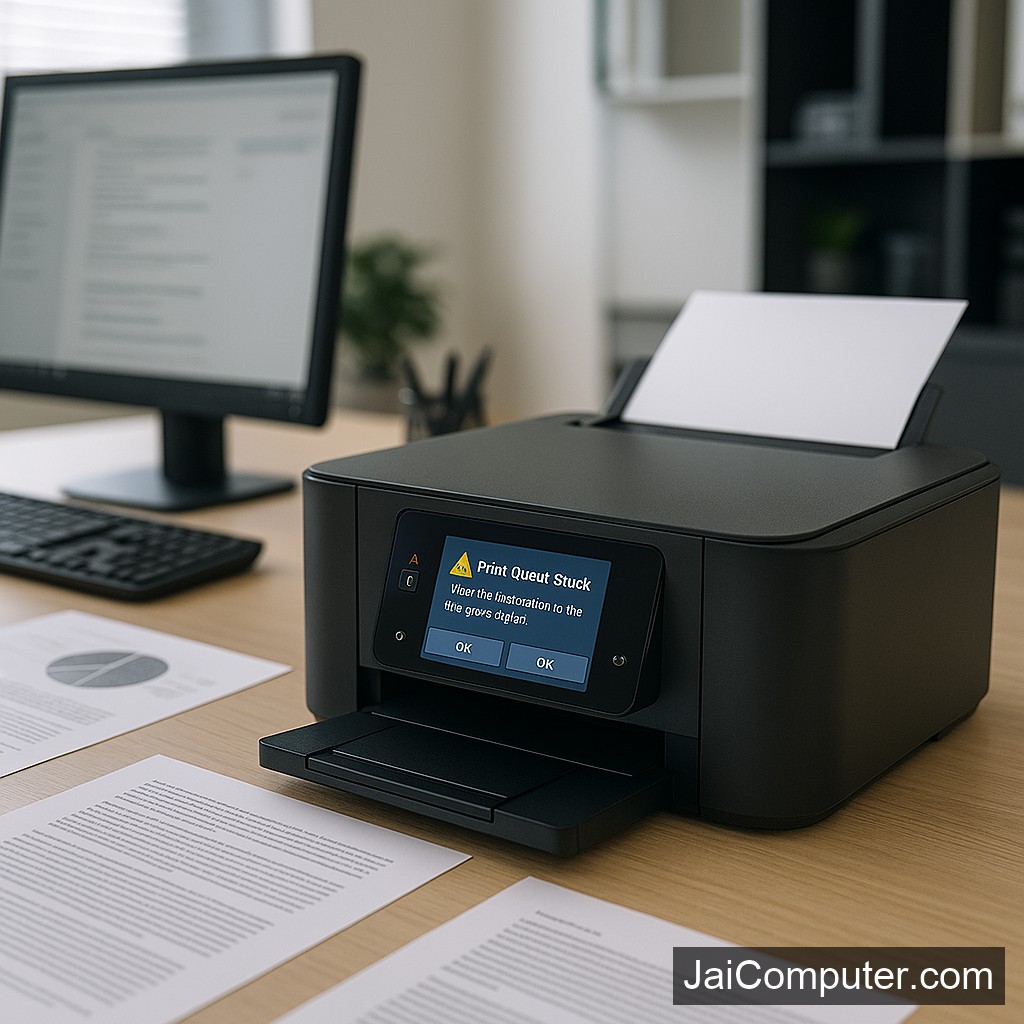
प्रिंटर प्रिंट नहीं कर रहा? प्रिंट कतार समस्याओं का समाधान करें
सामान्य लक्षण
जब प्रिंटर प्रिंट नहीं कर रहा होता है, तो कुछ सामान्य लक्षण दिखाई देते हैं:
- प्रिंटर से कोई रिस्पॉन्स नहीं आना।
- प्रिंट आदेश देने के बाद कोई गतिविधि नहीं।
- प्रिंटर पर त्रुटि संदेश दिखना।
संभावित कारण
कई बार यह समस्या निम्नलिखित कारणों से हो सकती है:
- प्रिंट कतार में फाइलें अटक जाना।
- प्रिंटर और कंप्यूटर के बीच खराब कनेक्शन।
- पुराने प्रिंटर ड्राइवर।
समाधान के कदम
प्रिंट कतार साफ़ करें
- कंप्यूटर पर ‘प्रिंट स्पूलर’ सेवा को रोकें।
- प्रिंट कतार में फंसी हुई फाइलें हटाएं।
- सेवा को पुनरारंभ करें।
प्रिंटर कनेक्शन जांचें
- USB या नेटवर्क कनेक्शन की जांच करें।
- वायरलेस सेटअप सही है या नहीं, यह सुनिश्चित करें।
सॉफ़्टवेयर अपडेट
प्रिंटर ड्राइवर और सॉफ़्टवेयर को नवीनतम संस्करण में अपडेट करें।
क्या न करें
कुछ चीजें हैं जिन्हें करने से बचना चाहिए:
- प्रिंटर के अंदर के हिस्सों को छूने से बचें।
- डिलीट या अनइंस्टॉल न करें जब तक कि आप पूरी तरह से सुनिश्चित न हों।
कब पेशेवर मदद लें?
अगर ऊपर दिए गए कदम समस्या का समाधान नहीं करते, तो जय कंप्यूटर्स ओसियन से संपर्क करें। हम आपकी मदद के लिए हमेशा तैयार हैं।
रोकथाम के उपाय
- प्रिंटर ड्राइवरों को नियमित रूप से अपडेट रखें।
- प्रिंटर और कंप्यूटर के बीच कनेक्शन की समय-समय पर जांच करें।
अक्सर पूछे जाने वाले प्रश्न
- क्या प्रिंटर रीसेट करने से मदद मिलती है? हाँ, कई बार रीसेट करने से समस्या हल हो जाती है।
- क्या नेटवर्क समस्या हो सकती है? हाँ, नेटवर्क कनेक्शन की खराबी इसका कारण हो सकती है।
- क्या प्रिंटर ड्राइवर अपडेट करना आवश्यक है? हाँ, यह समस्या समाधान में मदद कर सकता है।
Printer Not Printing? Resolve Stuck Print Queue Issues
Is your printer refusing to print? This common issue could be due to a stuck print queue. Here, we’ll guide you through simple methods to resolve it efficiently.
Common Symptoms of a Stuck Print Queue
When your printer stops working, you might notice these symptoms:
- Printer not responding to commands.
- No activity after sending a print command.
- Error messages displayed on the printer or computer.
Likely Causes of Print Queue Problems
Understanding the root causes helps in troubleshooting:
- Software Glitches: Temporary software issues can cause queues to freeze.
- Connection Errors: Poor or disrupted connections between devices.
- Outdated Drivers: Old printer drivers may not function properly.
Step-by-Step Diagnostic Checks
1. Clear the Print Queue
Follow these steps to clear your print queue:
- Open the ‘Control Panel’ on your computer.
- Select ‘Devices and Printers’.
- Right-click on your printer and choose ‘See what’s printing’.
- In the window that appears, click on ‘Printer’ in the menu and then select ‘Cancel All Documents’.
2. Restart the Print Spooler Service
This can help refresh the print process:
- Press ‘Windows + R’ to open the Run dialog.
- Type
services.mscand press Enter. - Scroll down to find ‘Print Spooler’.
- Right-click and select ‘Restart’.
3. Check Printer Connections
Ensure your printer is properly connected:
- Verify that all cables are securely connected.
- For wireless printers, make sure the printer is connected to the network.
- Try reconnecting or using a different USB port if necessary.
4. Update Printer Drivers
Outdated drivers can be problematic:
- Go to the printer manufacturer’s website.
- Download and install the latest drivers for your model.
- Restart your computer after installation.
Things to Avoid
To prevent further complications, avoid the following:
- Do not attempt to open or repair internal printer parts.
- Avoid uninstalling drivers unless you’re certain of the process.
When to Seek Professional Help
If you’ve tried these steps and the issue persists, it might be time to seek professional assistance. Visit our Jai Computers Osian website or stop by our store in Osian for expert help.
Preventing Future Print Queue Problems
Regular maintenance can help avoid future issues:
- Frequently check and update your printer software.
- Ensure a stable connection between your printer and computer.
- Regularly clear print queues to avoid pile-ups.
Frequently Asked Questions
- Does resetting the printer help? Yes, a reset can sometimes resolve minor issues by refreshing the printer.
- Could it be a network issue? Yes, weak or disrupted network connections can lead to printing problems.
- Is updating printer drivers necessary? Absolutely, keeping drivers updated ensures compatibility and smooth operation.