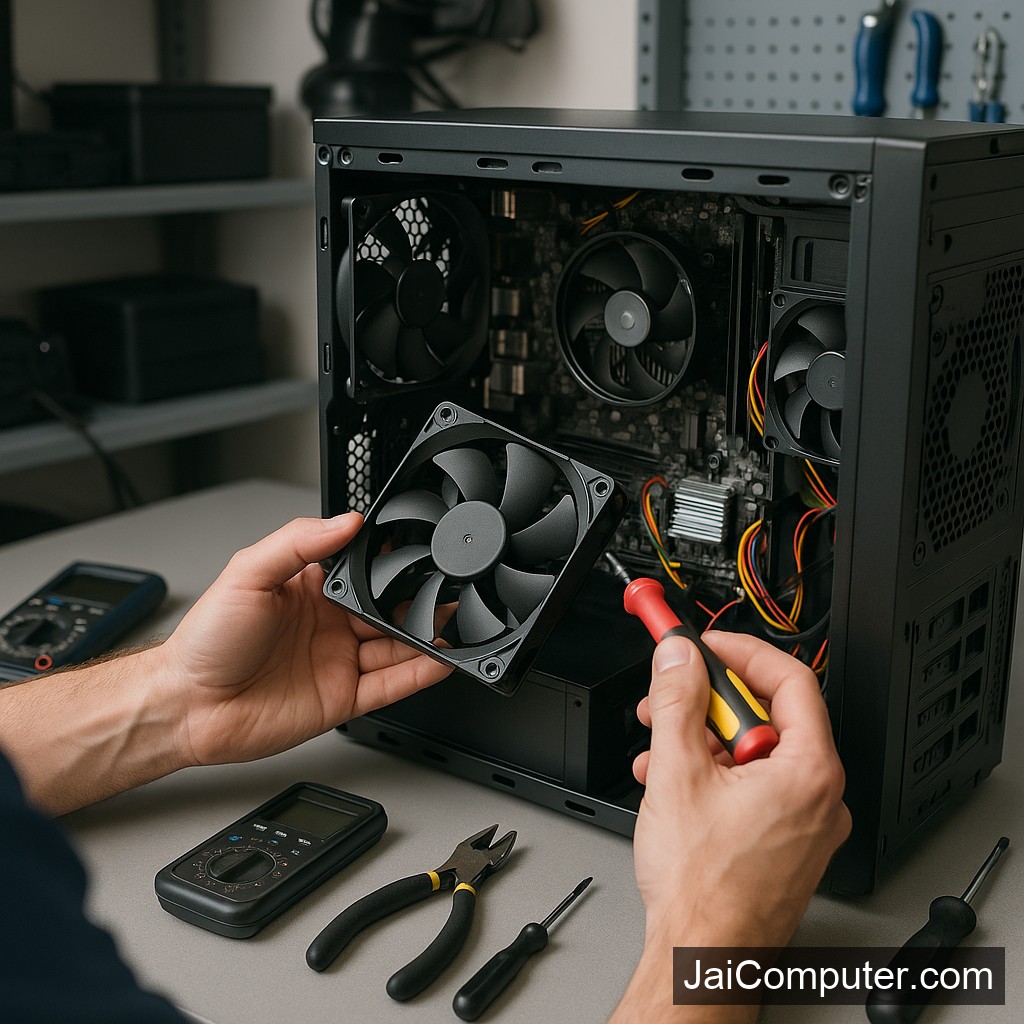
डेस्कटॉप फैन नॉइज़: कैसे करें डायग्नोज़ और फिक्स
अगर आपका डेस्कटॉप फैन अचानक से शोर करने लगे, तो यह चिंता का कारण बन सकता है। यह समस्या कई कारणों से उत्पन्न हो सकती है, और इसे नजरअंदाज करने पर आपके कंप्यूटर को नुकसान हो सकता है। इस गाइड में, ‘जय कंप्यूटर्स ओसियान’ के विशेषज्ञ आपको इस समस्या का निदान और समाधान करने का तरीका बताएंगे।
आम लक्षण
फैन की आवाज बढ़ जाने पर आप निम्नलिखित लक्षण देख सकते हैं:
- फैन से लगातार तेज आवाज आना
- कंप्यूटर के अंदर से कंपन महसूस होना
- कंप्यूटर का सामान्य से अधिक गर्म होना
संभावित कारण
- फैन में धूल जमना
- फैन के ब्लेड का असंतुलित होना
- फैन का पुराना या खराब होना
- कंप्यूटर का अत्यधिक गर्म होना
डायग्नोस्टिक चेक्स
कंप्यूटर को बंद करें
हमेशा कंप्यूटर को बंद कर दें और पावर सप्लाई से डिस्कनेक्ट करें।
फैन की सफाई
फैन पर जमी धूल को धीरे-धीरे साफ करें।
तापमान जांचें
BIOS में जाकर तापमान की जांच करें।
फैन की गति जांचें
फैन की गति को सॉफ़्टवेयर से जांचें।
क्या नहीं करें
- गीली चीजों का उपयोग न करें।
- फैन को खुद बदलने की कोशिश न करें अगर आपको जानकारी नहीं है।
- किसी भी संवेदनशील पार्ट को छूने से बचें।
कब लेनी चाहिए प्रोफेशनल मदद
अगर समस्या गंभीर हो या डेटा महत्त्वपूर्ण हो, तो ‘जय कंप्यूटर्स ओसियान’ से संपर्क करें। हमारी वेबसाइट के संपर्क पेज से सहायता प्राप्त करें या हमारे स्टोर में आएं।
निवारण
- फैन की नियमित सफाई करें।
- कंप्यूटर को धूल-मुक्त स्थान पर रखें।
- थर्मल पेस्ट का सही तरीके से उपयोग करें।
FAQ
- क्या शोर हमेशा खराब फैन की निशानी है? नहीं, कभी-कभी यह धूल या सेटिंग्स की वजह से भी हो सकता है।
- मैं फैन को कैसे साफ करूं? हल्के ब्रश या एयर ब्लोअर का उपयोग करें।
- कितनी बार फैन को साफ करना चाहिए? हर 3-6 महीने में सफाई की सलाह दी जाती है।
Understanding Desktop Fan Noise and Solutions
Experiencing noise from your desktop’s fan can be unsettling. The experts at Jai Computers Osian are here to guide you through diagnosing and resolving these issues effectively.
Common Symptoms of Fan Noise
Recognizing the symptoms of fan noise is crucial for timely intervention:
- Persistent loud whirring or buzzing sounds
- Noticeable vibrations from the computer case
- Higher than normal operating temperatures
Identifying Likely Causes
Several factors can contribute to fan noise:
- Dust Accumulation: Dust can block airflow, causing the fan to work harder.
- Fan Bearing Issues: Worn-out bearings can lead to noise.
- Inadequate Ventilation: Poor airflow can cause overheating.
Performing Safe Diagnostic Checks
Follow these steps to safely diagnose the issue:
1. Power Down and Disconnect
Ensure your computer is turned off and unplugged before any inspection.
2. Visual Inspection
Open the computer case and visually inspect the fan for dust or obstruction.
3. Clean the Fan
Gently remove dust using a can of compressed air or a soft brush. Avoid using liquids.
4. Monitor Temperatures
Access the BIOS or use software to check CPU temperatures and ensure they are within normal ranges.
5. Check Fan Speed
Software tools can help you monitor and adjust fan speeds to optimal levels.
What to Avoid
- Avoid using water or damp materials for cleaning.
- Do not attempt to manually adjust internal components if unfamiliar with hardware.
- Refrain from forcefully removing or replacing the fan without expertise.
When to Seek Professional Help
If the fan noise persists after basic troubleshooting, or if you are uncomfortable performing these checks, it’s time to consult a professional. Jai Computers Osian can assist with more complex diagnostics and repairs. Visit our website or drop by our store for expert support.
Preventative Measures
Taking proactive steps can reduce the likelihood of fan noise issues:
- Regular Cleaning: Clean the interior of your desktop every 3-6 months.
- Ensure Proper Ventilation: Position your computer in a well-ventilated area.
- Update Software: Keep your system and drivers updated to manage fan settings efficiently.
Frequently Asked Questions
- Is fan noise always a sign of a problem? Not necessarily. It may be due to dust or fan settings rather than a fault.
- How can I clean the fan safely? Use a soft brush or a can of compressed air; avoid liquids.
- How often should the fan be cleaned? Ideally, clean your fan every 3-6 months to maintain optimal performance.
For professional assistance and further advice, Jai Computers Osian is here to help you. Our team is ready to ensure your desktop runs smoothly and quietly.